> ## Documentation Index
> Fetch the complete documentation index at: https://sso.brellium.dev/llms.txt
> Use this file to discover all available pages before exploring further.
# SCIM Provisioning Configuration for Microsoft Entra ID
> Configure SCIM user provisioning for Brellium using Microsoft Entra ID (formerly Azure AD)
This guide walks you through configuring SCIM provisioning for the Brellium application using Microsoft Entra ID (formerly Azure Active Directory). SCIM provisioning enables you to manage user lifecycle operations from Microsoft Entra ID.
## Prerequisites
Before you configure SCIM provisioning, ensure you have:
* Administrator access to your Microsoft Entra ID tenant
* A Brellium admin account with permissions to authorize integrations
* The Brellium application registered in your Microsoft Entra ID tenant
* SSO configured for Brellium (see the [SSO Configuration for Microsoft Entra ID guide](/integrations/azure-ad-sso))
* SCIM Tenant URL and Secret Token from Brellium (contact your customer success manager or [Brellium support](mailto:sso.support@brellium.com))
## Supported features
The Brellium SCIM integration supports the following provisioning features:
| Feature | Direction | Description |
| ---------------------- | -------------------- | ------------------------------------------------------------------------------------ |
| Push new users | Entra ID to Brellium | Users assigned to the Brellium app in Entra ID are automatically created in Brellium |
| Push profile updates | Entra ID to Brellium | Profile changes made in Entra ID are synced to Brellium |
| Push user deactivation | Entra ID to Brellium | Users unassigned or disabled in Entra ID are deactivated in Brellium |
| Reactivate users | Entra ID to Brellium | Previously deactivated users are reactivated when reassigned in Entra ID |
## Supported profile attributes
The following SCIM attributes are supported for user provisioning between Microsoft Entra ID and Brellium:
### Core attributes
| SCIM attribute | Description |
| ------------------------------- | ---------------------------------------------------------------------------------------------------------------------------------------------------------------------------------------------------------------------------------------------------------------------------------------------------------------------------------------------------------------------------------------- |
| `userName` | User's primary identifier (email address format) |
| `emails[primary eq true].value` | Primary email address |
| `name.givenName` | First name |
| `name.familyName` | Last name |
| `active` | Account activation status |
| `title` | Job title |
| `userType` | User type — determines the default permissions assigned when the user is created in Brellium. **You must set this value correctly.** Accepted values: `employee`, `operations`, `manager` (unless otherwise configured in coordination with Brellium). If you need a custom configuration, contact your customer success manager or [Brellium support](mailto:sso.support@brellium.com). |
| `timezone` | User's timezone |
| `externalId` | External identifier |
### Enterprise User extension attributes
The following attributes use the `urn:ietf:params:scim:schemas:extension:enterprise:2.0:User` schema namespace.
| Attribute | Description |
| ---------------- | --------------- |
| `employeeNumber` | Employee number |
| `department` | Department |
| `division` | Division |
| `organization` | Organization |
| `manager` | Manager |
The SCIM `userName` attribute in Brellium follows an email address format. Ensure the `userName` attribute is mapped to a UPN or email field in Microsoft Entra ID that uses an email address format.
## Configuration steps
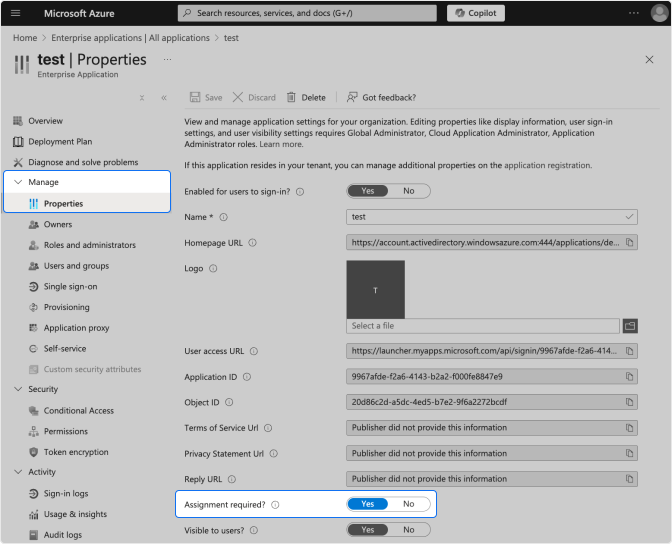
Before creating the SCIM application, verify that the enterprise application you created for Single Sign-On is configured correctly.
1. In the [Microsoft Entra admin center](https://entra.microsoft.com), go to **Identity** > **Applications** > **Enterprise applications**.
2. Select the application you created for Single Sign-On.
3. Go to **Manage** > **Properties**.
4. Confirm that **Assignment required?** is set to **Yes**.
 SCIM provisioning requires a separate non-gallery enterprise application in Microsoft Entra ID.
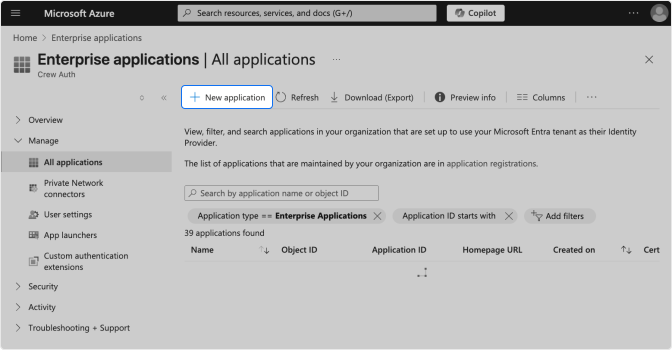
1. Go back to **Enterprise applications** and click **New application**.
SCIM provisioning requires a separate non-gallery enterprise application in Microsoft Entra ID.
1. Go back to **Enterprise applications** and click **New application**.
 2. Click **Create your own application**.
3. Enter a name for the application (e.g., `Brellium SCIM`).
4. Select **Integrate any other application you don't find in the gallery (Non-gallery)**.
5. Click **Create**.
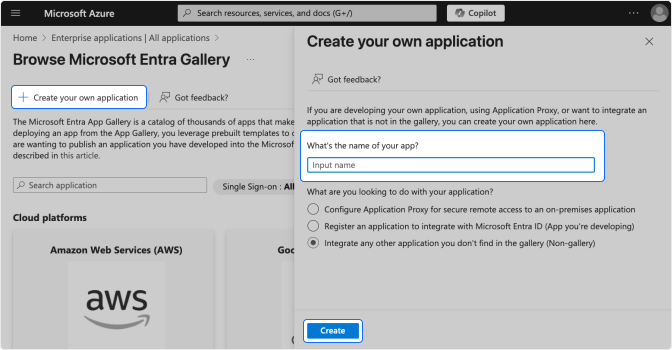
2. Click **Create your own application**.
3. Enter a name for the application (e.g., `Brellium SCIM`).
4. Select **Integrate any other application you don't find in the gallery (Non-gallery)**.
5. Click **Create**.
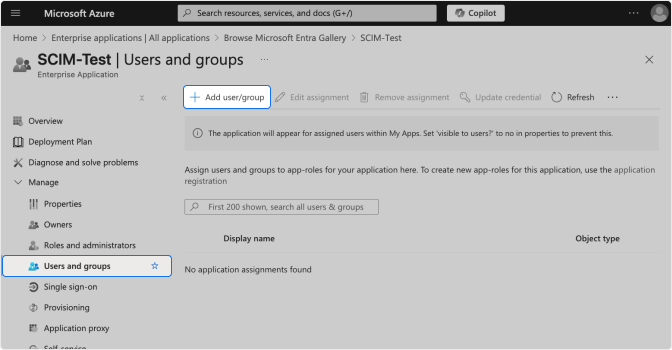
 Assign the same users and groups to the SCIM application as those assigned to the SSO application.
1. In the newly created SCIM application, go to **Users and groups** under **Manage**.
2. Click **Add user/group**.
3. Select the users or groups to assign and click **Assign**.
Assign the same users and groups to the SCIM application as those assigned to the SSO application.
1. In the newly created SCIM application, go to **Users and groups** under **Manage**.
2. Click **Add user/group**.
3. Select the users or groups to assign and click **Assign**.
 You must assign the same users and groups to the SCIM application as those in the SSO application. If users are not assigned to both applications, provisioning will not work correctly.
1. In the SCIM application, go to **Provisioning** under **Manage**.
2. Set **Provisioning Mode** to **Automatic**.
3. In the **Admin Credentials** section, enter the following:
* **Tenant URL**: Provided by Brellium
* **Secret Token**: Provided by Brellium
4. Click **Test Connection** to verify the credentials.
5. Click **Save**.
Contact your Brellium customer success manager or [Brellium support](mailto:sso.support@brellium.com) to obtain the SCIM Tenant URL and Secret Token for your organization.
1. In the **Provisioning** section, expand **Mappings**.
2. Click **Provision Microsoft Entra ID Users**.
3. Review the attribute mappings and ensure the following are configured:
* `userPrincipalName` → `userName`
* `mail` → `emails[type eq "work"].value`
* `givenName` → `name.givenName`
* `surname` → `name.familyName`
* `jobTitle` → `title`
4. Click **Save**.
Microsoft Entra ID provides default attribute mappings for standard SCIM attributes. Review the mappings to ensure they match your organization's directory structure.
1. In the **Provisioning** section, go to **Settings**.
2. Set the **Scope** to one of the following:
* **Sync only assigned users and groups** — Only users and groups assigned to the Brellium SCIM app are provisioned.
* **Sync all users and groups** — All users in the directory are provisioned.
3. Set **Provisioning Status** to **On**.
4. Click **Save**.
Microsoft Entra ID begins the initial provisioning cycle. The initial cycle may take longer than subsequent cycles.
For most organizations, **Sync only assigned users and groups** is recommended to maintain control over which users have access to Brellium.
1. In the **Provisioning** section, check the **Provisioning logs** for the status of provisioned users.
2. In Brellium, verify that the provisioned user accounts were created with the correct profile attributes.
3. Update a test user's profile in Microsoft Entra ID (for example, change the job title or department).
4. Verify that the profile update is synced to Brellium.
5. Unassign a test user from the Brellium app in Microsoft Entra ID.
6. Verify that the user is deactivated in Brellium.
## Troubleshoot
| Issue | Cause | Solution |
| ------------------------ | --------------------------------------------- | ----------------------------------------------------------------------------- |
| "Test Connection" fails | Incorrect Tenant URL or Secret Token | Verify the SCIM credentials provided by Brellium |
| Users not provisioned | Provisioning scope is misconfigured | Verify the scope setting and ensure users are assigned to the app |
| Attribute mapping errors | Incorrect attribute mappings | Review the mappings in the **Provision Microsoft Entra ID Users** section |
| Provisioning cycle stuck | Microsoft Entra ID provisioning service issue | Check the **Provisioning logs** for errors and restart provisioning if needed |
## Support
If you have questions or encounter issues not covered in this guide, contact the Brellium support team:
* **Email**: [sso.support@brellium.com](mailto:sso.support@brellium.com)
You must assign the same users and groups to the SCIM application as those in the SSO application. If users are not assigned to both applications, provisioning will not work correctly.
1. In the SCIM application, go to **Provisioning** under **Manage**.
2. Set **Provisioning Mode** to **Automatic**.
3. In the **Admin Credentials** section, enter the following:
* **Tenant URL**: Provided by Brellium
* **Secret Token**: Provided by Brellium
4. Click **Test Connection** to verify the credentials.
5. Click **Save**.
Contact your Brellium customer success manager or [Brellium support](mailto:sso.support@brellium.com) to obtain the SCIM Tenant URL and Secret Token for your organization.
1. In the **Provisioning** section, expand **Mappings**.
2. Click **Provision Microsoft Entra ID Users**.
3. Review the attribute mappings and ensure the following are configured:
* `userPrincipalName` → `userName`
* `mail` → `emails[type eq "work"].value`
* `givenName` → `name.givenName`
* `surname` → `name.familyName`
* `jobTitle` → `title`
4. Click **Save**.
Microsoft Entra ID provides default attribute mappings for standard SCIM attributes. Review the mappings to ensure they match your organization's directory structure.
1. In the **Provisioning** section, go to **Settings**.
2. Set the **Scope** to one of the following:
* **Sync only assigned users and groups** — Only users and groups assigned to the Brellium SCIM app are provisioned.
* **Sync all users and groups** — All users in the directory are provisioned.
3. Set **Provisioning Status** to **On**.
4. Click **Save**.
Microsoft Entra ID begins the initial provisioning cycle. The initial cycle may take longer than subsequent cycles.
For most organizations, **Sync only assigned users and groups** is recommended to maintain control over which users have access to Brellium.
1. In the **Provisioning** section, check the **Provisioning logs** for the status of provisioned users.
2. In Brellium, verify that the provisioned user accounts were created with the correct profile attributes.
3. Update a test user's profile in Microsoft Entra ID (for example, change the job title or department).
4. Verify that the profile update is synced to Brellium.
5. Unassign a test user from the Brellium app in Microsoft Entra ID.
6. Verify that the user is deactivated in Brellium.
## Troubleshoot
| Issue | Cause | Solution |
| ------------------------ | --------------------------------------------- | ----------------------------------------------------------------------------- |
| "Test Connection" fails | Incorrect Tenant URL or Secret Token | Verify the SCIM credentials provided by Brellium |
| Users not provisioned | Provisioning scope is misconfigured | Verify the scope setting and ensure users are assigned to the app |
| Attribute mapping errors | Incorrect attribute mappings | Review the mappings in the **Provision Microsoft Entra ID Users** section |
| Provisioning cycle stuck | Microsoft Entra ID provisioning service issue | Check the **Provisioning logs** for errors and restart provisioning if needed |
## Support
If you have questions or encounter issues not covered in this guide, contact the Brellium support team:
* **Email**: [sso.support@brellium.com](mailto:sso.support@brellium.com)