> ## Documentation Index
> Fetch the complete documentation index at: https://sso.brellium.dev/llms.txt
> Use this file to discover all available pages before exploring further.
# SSO Configuration for Okta
> Configure single sign-on and Universal Logout for Brellium using Okta Express Configuration through the Okta Integration Network (OIN)
This guide walks you through configuring single sign-on (SSO) and Universal Logout for the Brellium application published in the Okta Integration Network (OIN). Express Configuration automates the exchange of OIDC configuration values between Okta and Brellium, simplifying the setup process.
## Prerequisites
Before you begin, ensure you have:
* Administrator access to your Okta tenant
* A Brellium admin account with permissions to authorize integrations
## Supported features
The Brellium Okta integration supports the following features:
* **SP-initiated SSO** — Users can sign in to Brellium from the Brellium sign-in page, which redirects to Okta for authentication.
* **IdP-initiated SSO** — Users can sign in to Brellium directly from the Okta dashboard by clicking the Brellium tile.
* **Just-In-Time (JIT) provisioning** — User accounts are automatically created in Brellium on first sign-in through Okta. The following attributes are provisioned:
* Email address
* Full name
* **SP-initiated Single Logout (SLO)** — Users who sign out from Brellium also have their Okta session terminated.
* **Universal Logout** — Okta administrators or the Okta system can terminate Brellium sessions. Universal Logout is triggered when:
* An administrator initiates a logout from the Okta Admin Console
* The Okta system detects a security risk and terminates sessions
For more information on these features, visit the [Okta Glossary](https://help.okta.com/okta_help.htm?type=oie\&id=ext_glossary).
The SCIM `userName` attribute in Brellium follows an email address format. You must select **Email** for the **Application username format** on the **Sign On** tab in Okta to ensure usernames are correctly mapped.
To provision and deprovision users in Brellium using SCIM, see the [SCIM Provisioning Configuration guide](/integrations/okta-scim).
## Express Configuration steps
1. Sign in to the [Okta Admin Console](https://login.okta.com).
2. Go to **Applications** > **Browse App Catalog**.
3. Search for **Brellium**.
4. Click **Add Integration**.
5. On the **General Settings** tab, configure the application label if needed, then click **Done**.
1. In the Brellium app instance in your Okta org, click the **Sign On** tab.
2. Click **Express Configure SSO & UL** in the Express Configuration for Brellium section. You are redirected to the Brellium sign-in page.
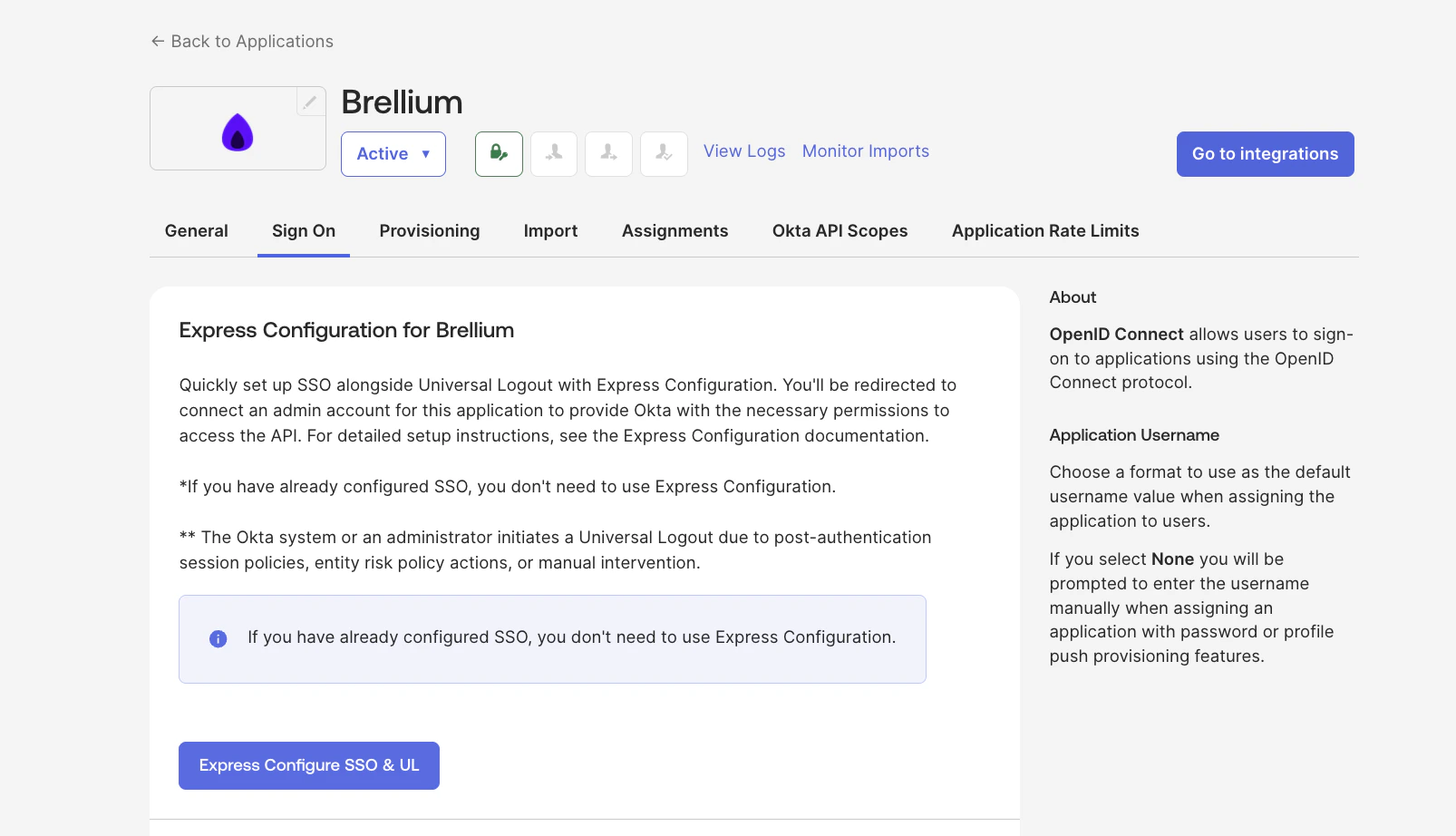 3. Sign in to Brellium using your admin credentials.
4. On the consent page, review the **Authorize App** details to grant Okta access to Brellium, then click **Accept**.
You are automatically redirected back to your Okta org. A success message confirms that SSO and Universal Logout have been configured.
1. In the Brellium app instance, click the **Sign On** tab.
2. Under **Credentials Details**, change the **Application username format** from the default **Okta Username** to **Email**.
3. Click **Save**.
3. Sign in to Brellium using your admin credentials.
4. On the consent page, review the **Authorize App** details to grant Okta access to Brellium, then click **Accept**.
You are automatically redirected back to your Okta org. A success message confirms that SSO and Universal Logout have been configured.
1. In the Brellium app instance, click the **Sign On** tab.
2. Under **Credentials Details**, change the **Application username format** from the default **Okta Username** to **Email**.
3. Click **Save**.
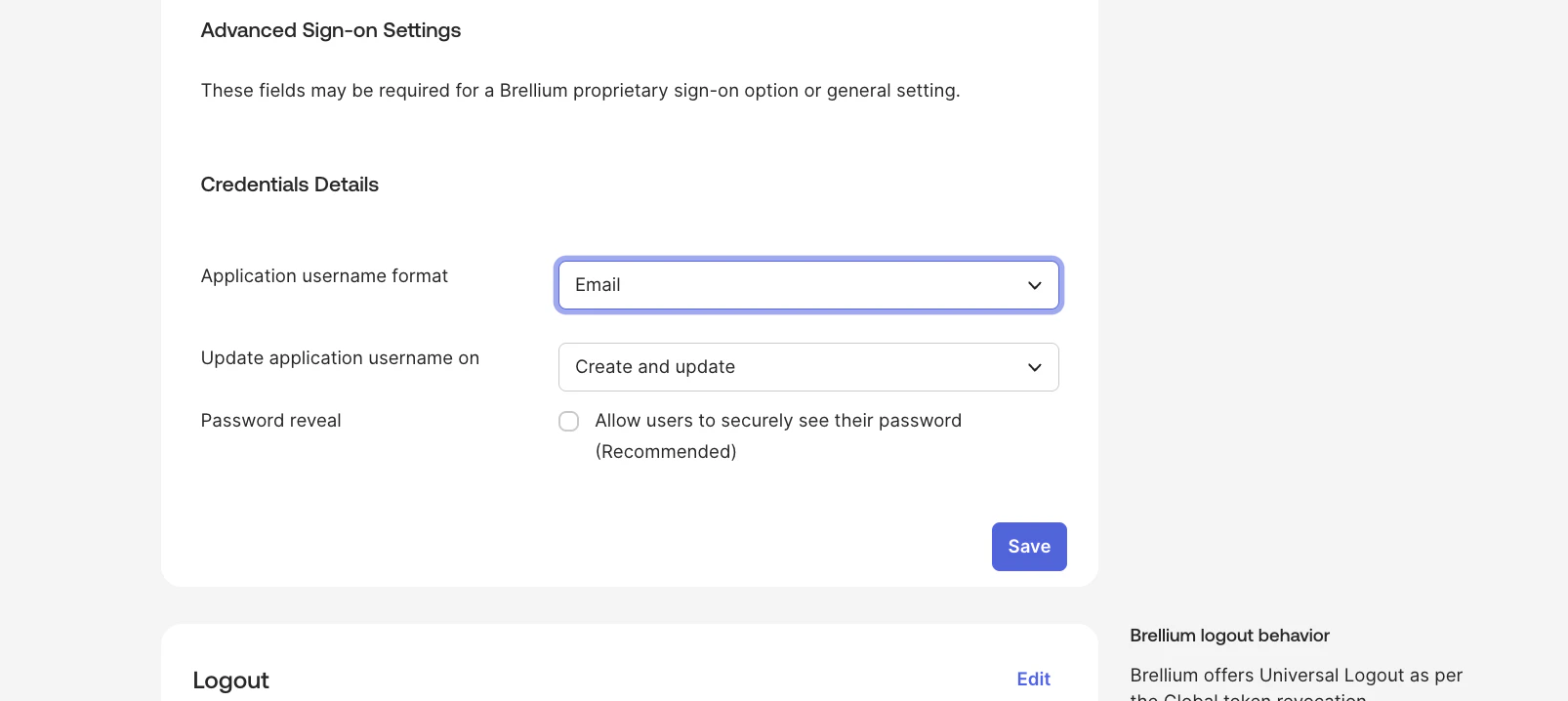 You **must** set the **Application username format** to **Email**. If you leave the default **Okta Username** setting, users will not be able to sign in to Brellium. Brellium requires an email address as the username identifier.
1. In the Brellium app instance, click the **Sign On** tab.
2. In the **Universal Logout** section, verify that the **Okta system or admin initiates logout** option is enabled.
1. In the Brellium app instance, click the **Assignments** tab.
2. Click **Assign** > **Assign to People** (or **Assign to Groups**).
3. Select the users or groups to assign and click **Assign**.
4. Click **Save and Go Back**, then click **Done**.
Verify that SSO and Universal Logout are working correctly.
**Verify IdP-initiated SSO:**
1. Sign in to the Okta dashboard as an assigned test user.
2. Click the **Brellium** tile.
3. Confirm that you are signed in to Brellium without being prompted for additional credentials.
**Verify SP-initiated SSO:**
1. Open a new browser window and go to the [Brellium sign-in page](https://app.brellium.com).
2. Click **Sign in with Okta**.
3. Enter your Okta credentials.
4. Confirm that you are signed in to Brellium.
**Verify Universal Logout:**
1. Sign in to Brellium via Okta as a test user.
2. From the Okta Admin Console, terminate the user's session.
3. Confirm that the user's Brellium session is also terminated.
## SP-initiated SSO
After the integration is configured, users can sign in to Brellium using one of the following methods:
For SP-initiated SSO, users must access Brellium through one of the options below. Direct sign-in at `app.brellium.com` without a verified domain will not automatically redirect to Okta.
**Option 1: Use your organization's Brellium domain**
Navigate directly to your organization's dedicated Brellium URL (e.g., `https://myorganization.brellium.app`). You are automatically redirected to Okta for authentication.
**Option 2: Sign in with a verified domain**
If your organization has configured verified domains:
1. Go to [https://app.brellium.com](https://app.brellium.com).
2. Enter your email address.
3. You are automatically redirected to Okta for authentication based on your email domain.
If your organization has not yet configured verified domains, contact your customer success manager or [Brellium support](mailto:sso.support@brellium.com) to set this up.
If your credentials are valid, you are redirected to the Brellium dashboard.
## Troubleshoot
| Issue | Cause | Solution |
| ------------------------------------- | -------------------------------------------------------------- | -------------------------------------------------------------------------------------------------- |
| "Invalid client" error | OIDC client credentials are incorrect | Re-run Express Configuration by clicking **Express Configure SSO & UL** on the **Sign On** tab |
| "Redirect URI mismatch" error | The redirect URI in Okta doesn't match Brellium's callback URL | Re-run Express Configuration to automatically set the correct redirect URIs |
| Users aren't created on first sign-in | Just-In-Time provisioning isn't enabled | Contact Brellium support to enable JIT provisioning for your organization |
| Universal Logout isn't working | Universal Logout was not enabled after Express Configuration | Verify that the **Okta system or admin initiates logout** option is enabled on the **Sign On** tab |
## Support
If you have questions or encounter issues not covered in this guide, contact the Brellium support team:
* **Email**: [sso.support@brellium.com](mailto:sso.support@brellium.com)
You **must** set the **Application username format** to **Email**. If you leave the default **Okta Username** setting, users will not be able to sign in to Brellium. Brellium requires an email address as the username identifier.
1. In the Brellium app instance, click the **Sign On** tab.
2. In the **Universal Logout** section, verify that the **Okta system or admin initiates logout** option is enabled.
1. In the Brellium app instance, click the **Assignments** tab.
2. Click **Assign** > **Assign to People** (or **Assign to Groups**).
3. Select the users or groups to assign and click **Assign**.
4. Click **Save and Go Back**, then click **Done**.
Verify that SSO and Universal Logout are working correctly.
**Verify IdP-initiated SSO:**
1. Sign in to the Okta dashboard as an assigned test user.
2. Click the **Brellium** tile.
3. Confirm that you are signed in to Brellium without being prompted for additional credentials.
**Verify SP-initiated SSO:**
1. Open a new browser window and go to the [Brellium sign-in page](https://app.brellium.com).
2. Click **Sign in with Okta**.
3. Enter your Okta credentials.
4. Confirm that you are signed in to Brellium.
**Verify Universal Logout:**
1. Sign in to Brellium via Okta as a test user.
2. From the Okta Admin Console, terminate the user's session.
3. Confirm that the user's Brellium session is also terminated.
## SP-initiated SSO
After the integration is configured, users can sign in to Brellium using one of the following methods:
For SP-initiated SSO, users must access Brellium through one of the options below. Direct sign-in at `app.brellium.com` without a verified domain will not automatically redirect to Okta.
**Option 1: Use your organization's Brellium domain**
Navigate directly to your organization's dedicated Brellium URL (e.g., `https://myorganization.brellium.app`). You are automatically redirected to Okta for authentication.
**Option 2: Sign in with a verified domain**
If your organization has configured verified domains:
1. Go to [https://app.brellium.com](https://app.brellium.com).
2. Enter your email address.
3. You are automatically redirected to Okta for authentication based on your email domain.
If your organization has not yet configured verified domains, contact your customer success manager or [Brellium support](mailto:sso.support@brellium.com) to set this up.
If your credentials are valid, you are redirected to the Brellium dashboard.
## Troubleshoot
| Issue | Cause | Solution |
| ------------------------------------- | -------------------------------------------------------------- | -------------------------------------------------------------------------------------------------- |
| "Invalid client" error | OIDC client credentials are incorrect | Re-run Express Configuration by clicking **Express Configure SSO & UL** on the **Sign On** tab |
| "Redirect URI mismatch" error | The redirect URI in Okta doesn't match Brellium's callback URL | Re-run Express Configuration to automatically set the correct redirect URIs |
| Users aren't created on first sign-in | Just-In-Time provisioning isn't enabled | Contact Brellium support to enable JIT provisioning for your organization |
| Universal Logout isn't working | Universal Logout was not enabled after Express Configuration | Verify that the **Okta system or admin initiates logout** option is enabled on the **Sign On** tab |
## Support
If you have questions or encounter issues not covered in this guide, contact the Brellium support team:
* **Email**: [sso.support@brellium.com](mailto:sso.support@brellium.com)