> ## Documentation Index
> Fetch the complete documentation index at: https://sso.brellium.dev/llms.txt
> Use this file to discover all available pages before exploring further.
# SCIM Provisioning Configuration for Okta
> Configure SCIM user provisioning for Brellium using Okta Express Configuration through the Okta Integration Network (OIN)
This guide walks you through configuring SCIM provisioning for the Brellium application published in the Okta Integration Network (OIN). Express Configuration automates the setup of Brellium's SCIM endpoint, enabling you to manage user lifecycle operations from Okta.
## Prerequisites
Before you configure SCIM provisioning, ensure you have:
* Administrator access to your Okta tenant
* A Brellium admin account with permissions to authorize integrations
* The Brellium app added to your Okta org from the OIN catalog
* SSO configured for Brellium (see the [SSO Configuration for Okta guide](/integrations/okta-oidc-sso))
## Supported features
The Brellium SCIM integration supports the following provisioning features:
| Feature | Direction | Description |
| ---------------------- | ---------------- | -------------------------------------------------------------------------------- |
| Push new users | Okta to Brellium | Users assigned to the Brellium app in Okta are automatically created in Brellium |
| Push profile updates | Okta to Brellium | Profile changes made in Okta are synced to Brellium |
| Push user deactivation | Okta to Brellium | Users unassigned or deactivated in Okta are deactivated in Brellium |
| Reactivate users | Okta to Brellium | Previously deactivated users are reactivated when reassigned in Okta |
For more information on these features, visit the [Okta Glossary](https://help.okta.com/okta_help.htm?type=oie\&id=ext_glossary).
## Supported profile attributes
The following SCIM attributes are supported for user provisioning between Okta and Brellium:
### Core attributes
| SCIM attribute | Description |
| ------------------------------- | ---------------------------------------------------------------------------------------------------------------------------------------------------------------------------------------------------------------------------------------------------------------------------------------------------------------------------------------------------------------------------------------- |
| `userName` | User's primary identifier (email address format) |
| `emails[primary eq true].value` | Primary email address |
| `name.givenName` | First name |
| `name.familyName` | Last name |
| `active` | Account activation status |
| `title` | Job title |
| `userType` | User type — determines the default permissions assigned when the user is created in Brellium. **You must set this value correctly.** Accepted values: `employee`, `operations`, `manager` (unless otherwise configured in coordination with Brellium). If you need a custom configuration, contact your customer success manager or [Brellium support](mailto:sso.support@brellium.com). |
| `timezone` | User's timezone |
| `externalId` | External identifier |
### Enterprise User extension attributes
The following attributes use the `urn:ietf:params:scim:schemas:extension:enterprise:2.0:User` schema namespace.
| Attribute | Description |
| ---------------- | --------------- |
| `employeeNumber` | Employee number |
| `department` | Department |
| `division` | Division |
| `organization` | Organization |
| `manager` | Manager |
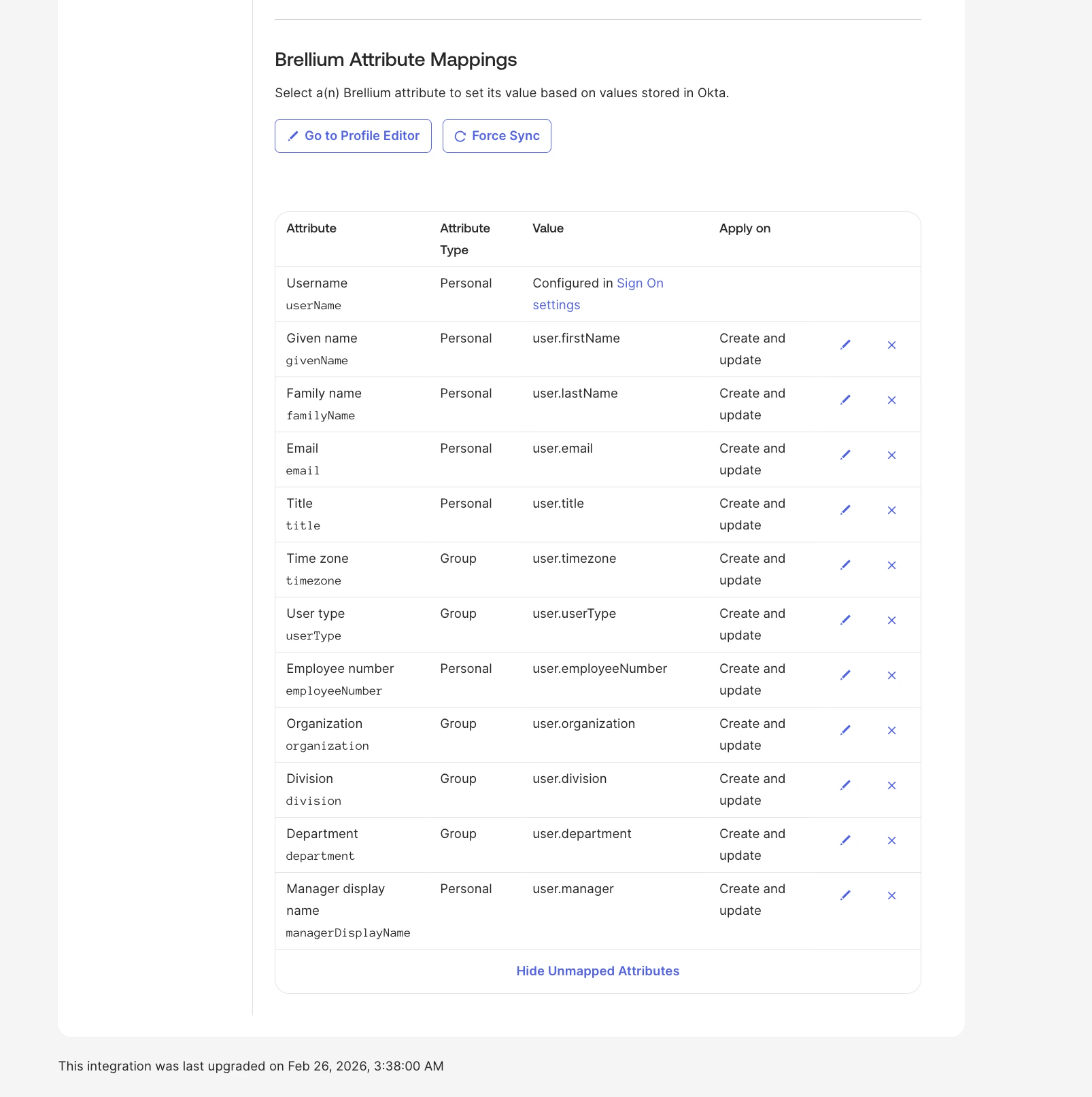
The SCIM `userName` attribute in Brellium follows an email address format. You must select **Email** for the **Application username format** on the **Sign On** tab in Okta to ensure usernames are correctly mapped. For detailed instructions, see the [Set the Application username format step](/integrations/okta-oidc-sso#set-the-application-username-format) in the SSO Configuration guide.
Since all of the attributes listed above are standard SCIM attributes, Okta provides default mappings for them. You do not need to manually configure attribute mappings in most cases.
## Express Configuration steps for provisioning
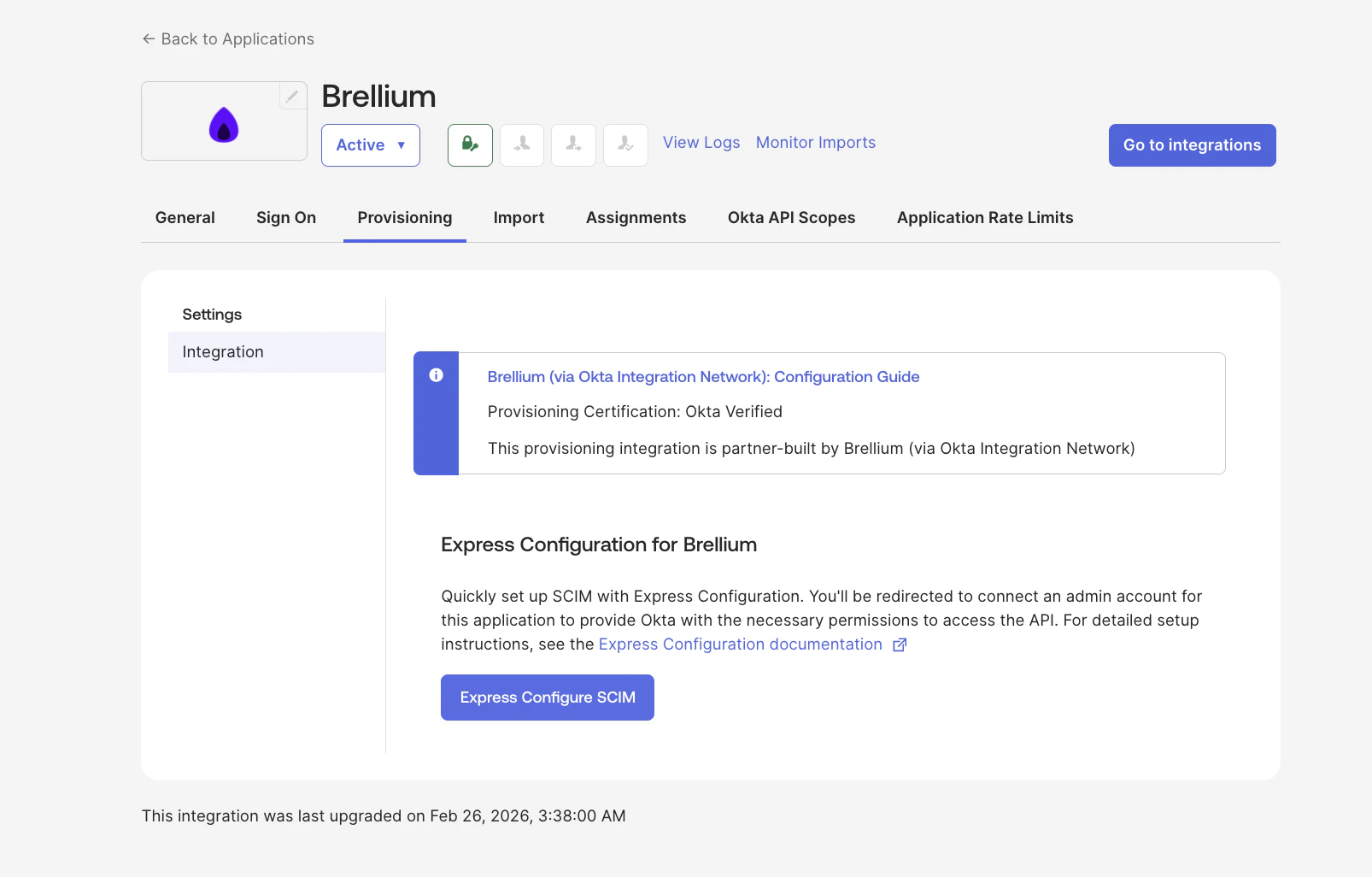
1. In the Brellium app instance in your Okta org, go to the **Provisioning** tab.
2. Click **Express Configure SCIM** in the Express Configuration for Brellium section. You are redirected to the Brellium sign-in page.
3. Sign in to Brellium using your admin credentials.
4. On the consent page, review the **Authorize App** details to grant Okta access to Brellium's SCIM endpoint, then click **Accept**.
You are automatically redirected back to your Okta org. A success message confirms that SCIM provisioning has been configured.
 1. In the **Provisioning** tab, click **To App** under **Settings**.
2. Click **Edit**.
3. Enable the following options:
* **Create Users**
* **Update User Attributes**
* **Deactivate Users**
4. Click **Save**.
1. In the **Provisioning** tab, click **To App** under **Settings**.
2. Click **Edit**.
3. Enable the following options:
* **Create Users**
* **Update User Attributes**
* **Deactivate Users**
4. Click **Save**.
 1. In the Brellium app instance, click the **Sign On** tab.
2. Under **Credentials Details**, set the **Application username format** to **Email**.
3. Click **Save**.
1. Go to the **Assignments** tab.
2. Click **Assign** > **Assign to People** (or **Assign to Groups**).
3. Select the users or groups to assign and click **Assign**.
4. Review the user attribute mappings and click **Save and Go Back**.
5. Click **Done**.
Okta provisions the assigned users to Brellium.
1. Assign the Brellium app to a test user in Okta.
2. In Brellium, verify that the test user account was created with the correct profile attributes.
3. Update the test user's profile in Okta (for example, change the job title or department).
4. Verify that the profile update is synced to Brellium.
5. Unassign the test user from the Brellium app in Okta.
6. Verify that the user is deactivated in Brellium.
## Troubleshoot
N/A
## Support
If you have questions or encounter issues not covered in this guide, contact the Brellium support team:
* **Email**: [sso.support@brellium.com](mailto:sso.support@brellium.com)
1. In the Brellium app instance, click the **Sign On** tab.
2. Under **Credentials Details**, set the **Application username format** to **Email**.
3. Click **Save**.
1. Go to the **Assignments** tab.
2. Click **Assign** > **Assign to People** (or **Assign to Groups**).
3. Select the users or groups to assign and click **Assign**.
4. Review the user attribute mappings and click **Save and Go Back**.
5. Click **Done**.
Okta provisions the assigned users to Brellium.
1. Assign the Brellium app to a test user in Okta.
2. In Brellium, verify that the test user account was created with the correct profile attributes.
3. Update the test user's profile in Okta (for example, change the job title or department).
4. Verify that the profile update is synced to Brellium.
5. Unassign the test user from the Brellium app in Okta.
6. Verify that the user is deactivated in Brellium.
## Troubleshoot
N/A
## Support
If you have questions or encounter issues not covered in this guide, contact the Brellium support team:
* **Email**: [sso.support@brellium.com](mailto:sso.support@brellium.com)